

8.5. EbiSync Manual#
LibEuFin EbiSync is an EBICS synchronization tool. It offers a command line interface to setup EBICS access and download & submit ISO20022 files.
It addresses the problem that interacting with banks over EBICS requires implementing a complex cryptographic handshake to download transaction data (CAMT files) or to upload instructions for payment initiation (PAIN files). With LibEuFin EbiSync, existing systems can use LibEuFin to talk with core banking systems over EBICS without having to implement EBICS or the Taler Wire Gateway API themselves. Instead, existing systems can simply use an HTTP POST request to submit PAIN files. Incoming CAMT files can be automatically placed into Cloud BLOB storage and processed from there.
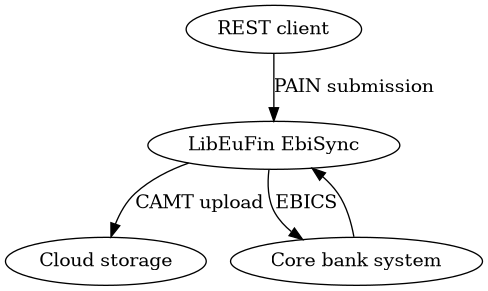
Today, the LibEuFin implementation supports EBICS 3.0 and has been tested with Postfinance (CHF), GLS (EUR), Raiffeisen (CHF), Maerki Baumann (CHF) and Valiant (CHF). Contact us if you need support for another bank.
In this manual, we explain how to setup an EBICS subscriber. We assume that the bank has already granted EBICS access to the subscriber.
8.5.1. Installing EbiSync#
The following section was tested on an OpenJDK 17 environment.
8.5.1.1. Installing the libeufin-ebisync binary packages on Debian#
To install the GNU Taler Debian packages, first ensure that you have the right Debian distribution. At this time, the packages are built for Debian trixie.
You need to add a file to import the GNU Taler packages. Typically,
this is done by adding a file /etc/apt/sources.list.d/taler.list that
looks like this:
deb [signed-by=/etc/apt/keyrings/taler-systems.gpg] https://deb.taler.net/apt/debian trixie main
Next, you must import the Taler Systems SA public package signing key into your keyring and update the package lists:
# wget -O /etc/apt/keyrings/taler-systems.gpg \
    https://taler.net/taler-systems.gpg
# apt update
Note
You may want to verify the correctness of the Taler Systems SA key out-of-band.
Now your system is ready to install the official GNU Taler binary packages using apt.
To install libeufin-ebisync, you can now simply run:
# apt install libeufin-ebisync
8.5.1.2. Installing the libeufin-ebisync binary packages on Ubuntu#
To install the GNU Taler Ubuntu packages, first ensure that you have
the right Ubuntu distribution. At this time, the packages are built for
Ubuntu Lunar and Ubuntu Jammy. Make sure to have universe in your
/etc/apt/sources.list.d/ubuntu.sources (after main)
as we depend on some packages from Ubuntu universe.
A typical /etc/apt/sources.list.d/taler.list file for this setup
would look like this for Ubuntu Noble:
deb [signed-by=/etc/apt/keyrings/taler-systems.gpg] https://deb.taler.net/apt/ubuntu/ noble main
Next, you must import the Taler Systems SA public package signing key into your keyring and update the package lists:
# wget -O /etc/apt/keyrings/taler-systems.gpg \
    https://taler.net/taler-systems.gpg
# apt update
Note
You may want to verify the correctness of the Taler Systems key out-of-band.
Now your system is ready to install the official GNU Taler binary packages using apt.
To install libeufin-ebisync, you can now simply run:
# apt install libeufin-ebisync
8.5.1.3. Building from source#
Ebisync belongs to the LibEuFin project, and can be downloaded via Git:
$ git clone git://git.taler.net/libeufin
Note that Kotlin and Gradle should already work on the host system.
Navigate into the libeufin local repository, and from top-level run:
$ ./bootstrap
8.5.1.3.1. Install deb package#
To install EbiSync as a Debian/Ubuntu package with an automated secure setup and systemd services:
$ sudo apt install debhelper
$ make deb
$ sudo dpkg -i ../libeufin-ebisync*.deb
If the previous steps succeeded, the libeufin-ebisync command should be found in the $PATH.
8.5.1.4. Services, users, groups and file system hierarchy#
The libeufin-ebisync package will create several system users to compartmentalize different parts of the system:
libeufin-ebisync: runs all LibEuFin EbiSync components.postgres: runs the PostgreSQL database (from postgresql package).
The package will deploy systemd service files in
/usr/lib/systemd/system/ for the various components:
libeufin-ebisync-httpd.service: http server for the Sync API.libeufin-ebisync-fetch.service: worker daemon that retrieves files via EBICS and uploads them to a destination.libeufin-ebisync.target: main target for EbiSync to be operational.
The deployment creates the following key locations in the system:
/etc/libeufin-ebisync/: configuration files./run/libeufin-ebisync/: contains the UNIX domain sockets for inter-process communication (IPC)./var/lib/libeufin-ebisync/: serves as the $HOME for libeufin-ebisync and contains the EBICS authentication keys.
8.5.2. Database setup#
The configuration file must include a connection string that tells EbiSync how it should connect to the database. The default is:
[ebisyncdb-postgres]
config = postgres:///libeufin-ebisync
You must make sure that this database exists and is accessible to the user running EbiSync before continuing. Then, the EbiSync database schema must be created (or updated) to the current EbiSync version using the following command:
$ sudo libeufin-ebisync-dbconfig
8.5.3. EBICS setup#
When you sign up for an EBICS-enabled bank account, the bank will provide you
with various credentials. Those must be provided in the
/etc/libeufin-ebisync/ebisync.conf configuration file.
The following snippet shows the mandatory configuration values:
[ebisync]
# Bank
HOST_BASE_URL = https://ebics.postfinance.ch/ebics/ebics.aspx

# EBICS IDs
HOST_ID = PFEBICS
USER_ID = PFC00563
PARTNER_ID = PFC00563
Note
Refer to the manpage libeufin-ebisync.conf(5)
for the full array of configuration values.
Warning
This combination of HOST_ID, USER_ID and PARTNER_ID must never be used by another instance of libeufin-ebisync or by other EBICS clients, otherwise data will be lost.
8.5.3.1. Reuse existing client keys#
If you have client keys from a previous EBICS setup you can copy the JSON file to the configured path CLIENT_PRIVATE_KEYS_FILE (/var/lib/libeufin-ebisync/client-ebics-keys.json with the default config).
Make sure this file is accessible to the user running libeufin-ebisync, for the default services you should run:
$ chown libeufin-ebisync:libeufin-ebisync /var/lib/libeufin-ebisync/client-ebics-keys.json
8.5.3.2. Create new client keys#
The following command should start the EBICS setup process:
$ sudo -u libeufin-ebisync libeufin-ebisync setup -c /etc/libeufin-ebisync/libeufin-ebisync.conf
If the previous command failed when running EBICS INI with an error code of
EBICS_INVALID_USER_OR_USER_STATE, you need to confirm your keys to your bank to
activate your account.
To that end, the previous run should have left a PDF document that you can
print, sign and send to the bank. Look for the message that looks like PDF
file with keys created at '/tmp/libeufin-ebics-keys/$TIMESTAMP.pdf'.
Once the bank has received and processed this document you can continue.
8.5.3.3. Get bank keys#
The following command will finish the EBICS setup process:
$ sudo -u libeufin-ebisync libeufin-ebisync setup -c /etc/libeufin-ebisync/libeufin-ebisync.conf
The EBICS setup is finished once the bank keys have been accepted.
8.5.4. Fetch destination setup#
8.5.4.1. Azure Blob Storage#
The following snippet shows the mandatory configuration values:
[ebisync-fetch]
DESTINATION = azure-blob-storage
Some configuration values are sensitive and must be written to a secret configuration file that is only accessible to the libeufin-ebisync user.
[ebisync-fetch]
AZURE_API_URL = https://myaccount.blob.core.windows.net/
AZURE_ACCOUNT_NAME = myaccount
AZURE_ACCOUNT_KEY = Eby8vdM02xNOcqFlqUwJPLlmEtlCDXJ1OUzFT50uSRZ6IFsuFq2UVErCz4I6tq/K1SZFPTOtr/KBHBeksoGMGw==
AZURE_CONTAINER = mycontainer
The following command will finish the fetcher setup process:
$ sudo -u libeufin-ebisync libeufin-ebisync setup -c /etc/libeufin-ebisync/libeufin-ebisync.conf
8.5.5. Submit source setup#
8.5.5.1. EbiSync API#
The following snippet shows the mandatory configuration values:
[ebisync-submit]
SOURCE = ebisync-api
Some configuration values are sensitive and must be written to a secret configuration file that is only accessible to the libeufin-ebisync user.
[ebisync-submit]
AUTH_METHOD = basic
USERNAME = admin
PASSWORD = password
The following command will finish the fetcher setup process:
$ sudo -u libeufin-ebisync libeufin-ebisync setup -c /etc/libeufin-ebisync/libeufin-ebisync.conf
8.5.6. Fetching files#
The responsible subcommand for fetching and uploading files is
fetch, and its configuration is a superset of ebisync-core-config. On
top of that, it expects the database connection string, the destination config and optionally a
frequency and a checkpoint time of day.
fetch will run a periodical fetch of pending documents (documents
that have never been fetched before). If the bank server supports it, it will
also listen to real-time document availability notifications and fetch
documents as soon as they are announced. This enables instant registration of
instant transactions. If your bank server does not support real-time
notifications, it is recommended that you fetch more often; otherwise, you can
reduce the fetch frequency.
Only fetching pending documents is not always reliable, if other EBICS clients
use the same connection settings as libeufin-ebisync, they can consume documents before they are ingested. In case of bank downtime, the status of
documents can be lost. This is why fetch will run a checkpoint every
day to download all documents generated since the last checkpoint.
If the bank supports real-time notifications, you can expect transactions to be registered as soon as they are booked: ~10s for instant transactions and 24 to 72h for other transactions. Otherwise, expect a latency corresponding to the fetch frequency for instant transactions. Thanks to checkpointing, latency should not exceed one day.
The frequency may be specified as
[ebisync-fetch]
FREQUENCY = 5m
The supported time units are s (seconds), m (minutes), h (hours).
The checkpoint time of day may be specified as
[ebisync-fetch]
CHECKPOINT_TIME_OF_DAY = 19:00
The following command would download any unseen EBICS files:
$ sudo -u libeufin-ebisync libeufin-ebisync fetch -c /etc/libeufin-ebisync/libeufin-ebisync.conf --transient
The fetch subcommand will always cause libeufin-ebisync to download EBICS files and upload them to the configured destination.
The --transient flag makes the command sync only
once and return immediately afterwards. Without the flag, EbiSync
will download at the frequency specified in the configuration or when it receives real-time notifications.
The --debug-ebics $SAVEDIR flag will cause EBICS transactions steps and payloads to be stored in $SAVEDIR/$YYYY-MM-DD where $YYYY-MM-DD represents the date when the download took place. This is mostly useful for debugging.
8.5.7. Submitting files#
If the ebisync-api source is configured, submission is triggered by using the API.
8.5.8. Deployment#
8.5.8.1. Reverse Proxy Setup#
By default if ebisync-api is used as a source, the libeufin-ebisync-httpd service listens for HTTP connections
on localhost. To make the service publicly available, a reverse
proxy such as nginx should be used. We strongly recommend to configure nginx
to use TLS.
The libeufin-ebisync package ships with a sample configuration that can be
enabled in nginx:
# vim /etc/nginx/sites-available/libeufin-ebisync
< ... customize configuration ... >
# ln -s /etc/nginx/sites-available/libeufin-ebisync /etc/nginx/sites-enabled/libeufin-ebisync
# systemctl reload nginx
8.5.8.2. Launching#
$ sudo systemctl start taler-ebisync.target